
How Can We Help?
Creating Items In BEAM for MeMinder
Adding new items in BEAM
A key part of managing MeMinder is adding and configuring list items for the person you support
To add new items:
- On any browser, log in to BEAM.CARE with your MeMinder login credentials
- Choose or create the system you wish to add tasks to
- Click “Select Items” on the left-hand side of the page
- Click the checkboxes for any premade tasks you’d like to use from the “PERSONAL CARE”, “VOCATIONAL” or “EDUCATIONAL” tabs, or create your own tasks in the “CUSTOM ITEMS” tab.
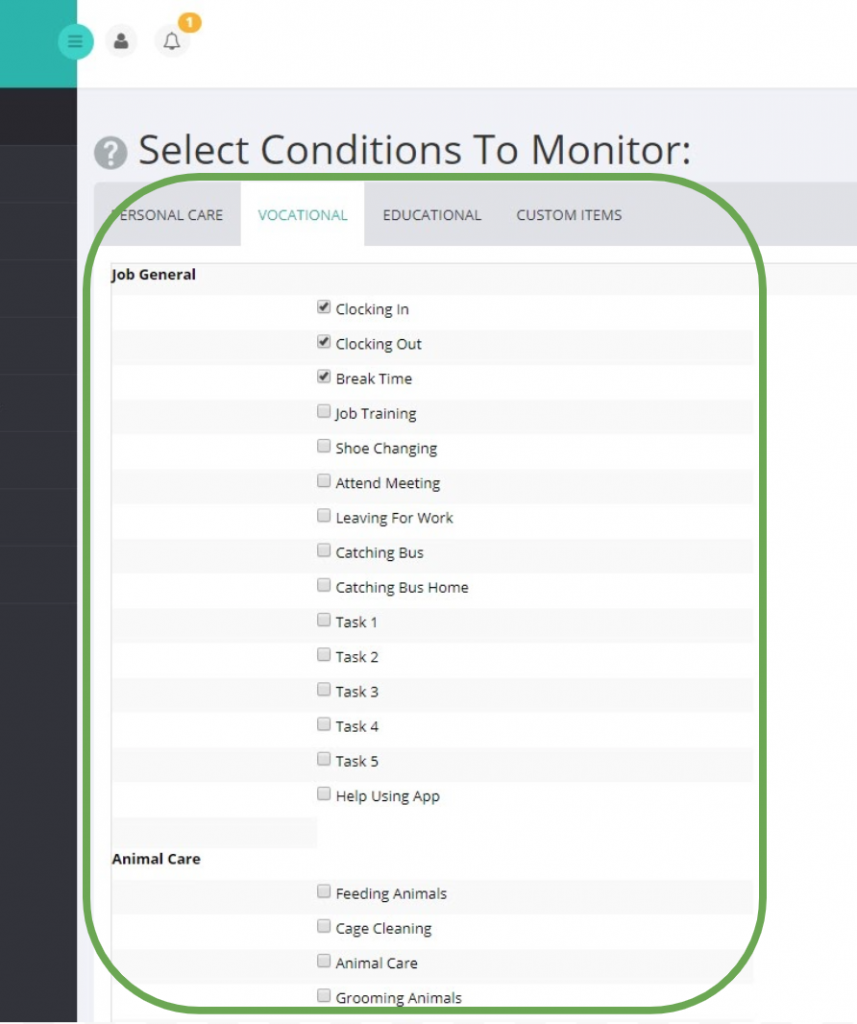
Items you select are added to the “Configure Plan” section of BEAM, and will not appear in MeMinder until you add them to the Personal List from the “Configure Plan” section of BEAM
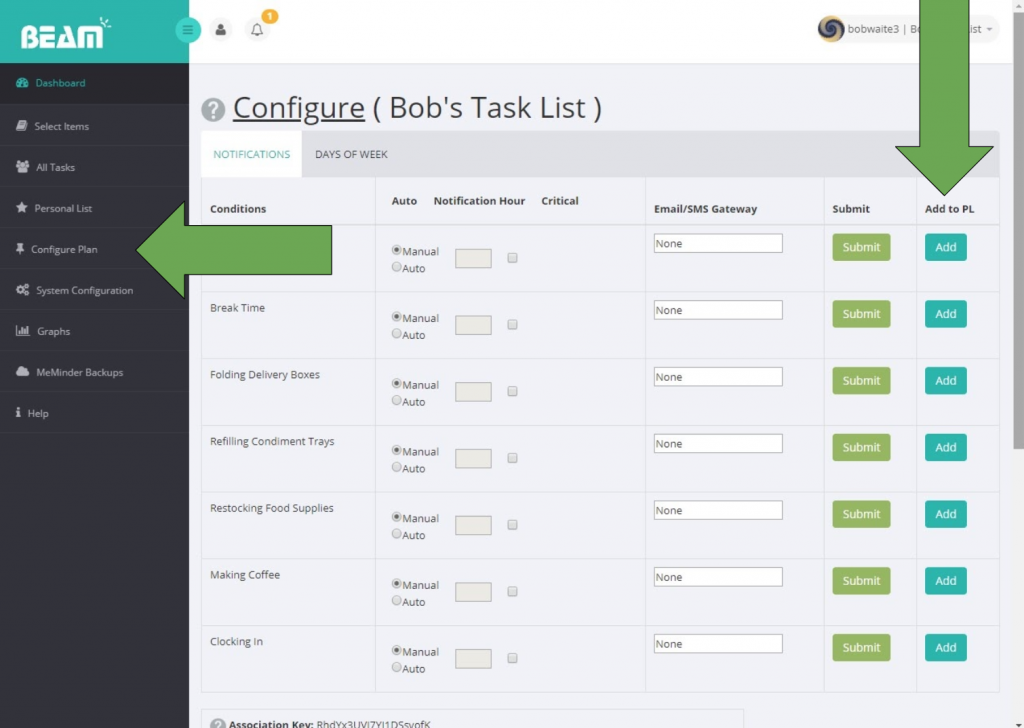
- Press “Configure Plan” on the menu panel to set-up notifications, and configure days of the week you would like the tasks to appear in MeMinder.
When you’re satisfied, click “Add” under the “Add to PL” column. - Once you’ve clicked the blue “Add”, that item will appear in the Personal List, and consequently on the MeMinder app.
Ordering items in the MeMinder App
Once you’ve added tasks to the personal list, you’ll want to order those tasks on your tablet in MeMinder.
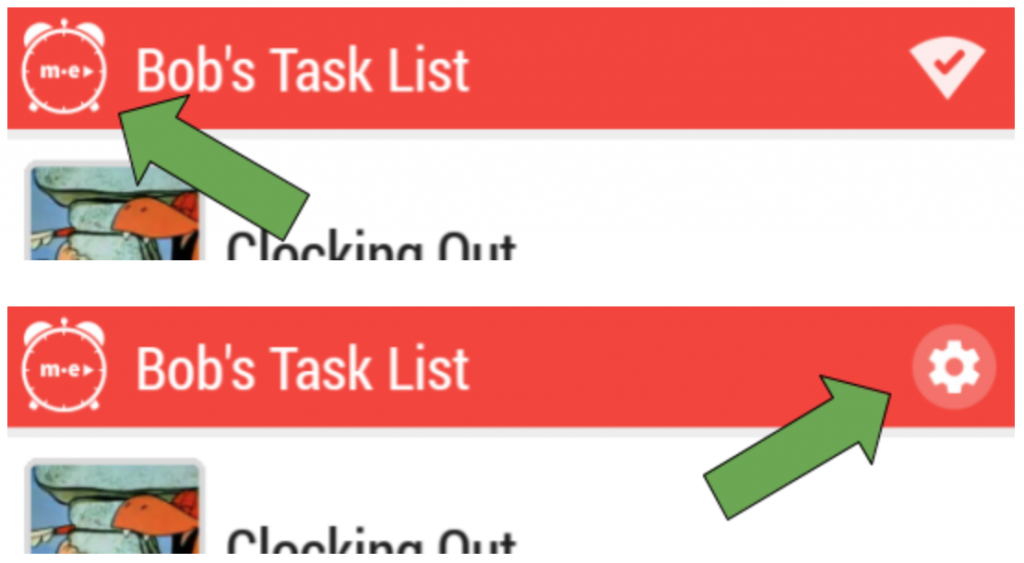
- First, press and hold the MeMinder logo for 3 seconds to unlock the settings icon, then click the settings icon.
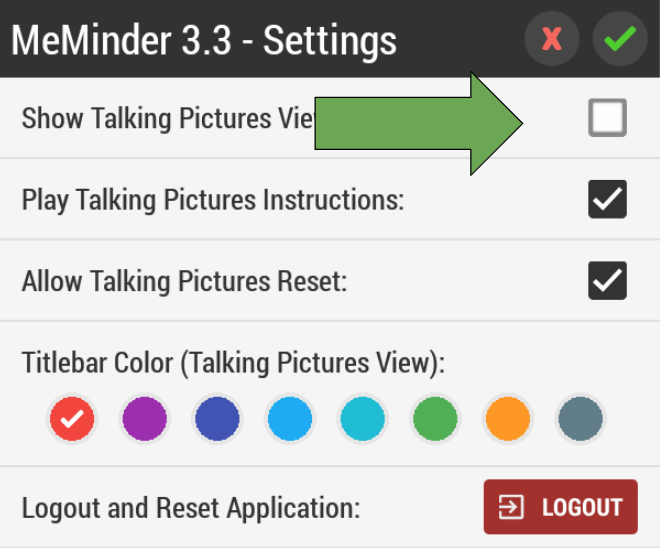
- In the settings, uncheck “Show Talking Pictures View” and press the green check mark in the uppermost right hand corner to enter the caregiver’s list view.
- Determine what order you’d like the tasks to appear, and swipe left on the task you would like to appear first. Press the edit icon.
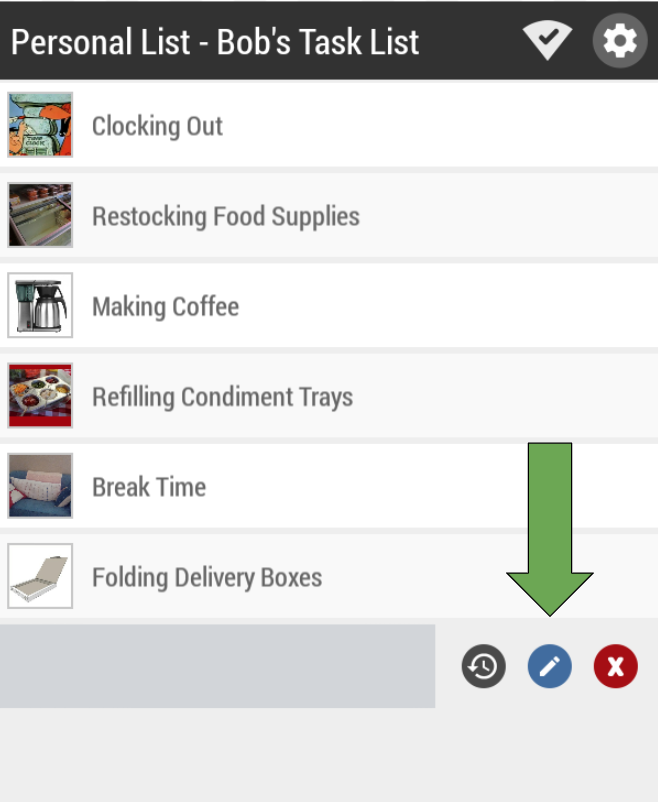
- To make the task appear first, select the leftmost color group, green.
Note: “PRE” tasks will hide all subsequent tasks from your student until they mark the PRE tasks as completed. “POST” tasks will remain hidden until all preceding tasks are marked as completed.
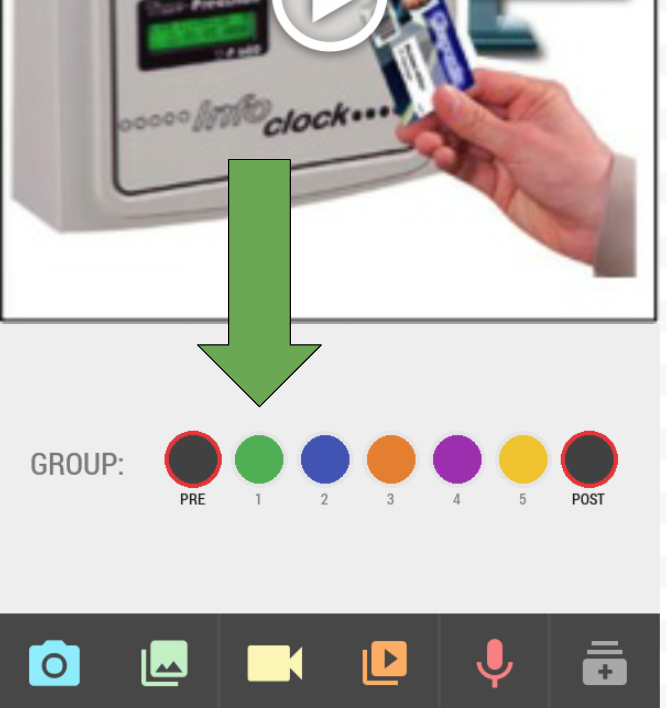
- If there are related tasks that you want to appear directly after your first task, mark those the same color, in the order you want them to appear.
- To make the next task or group of tasks appear after the green tasks, mark them as blue, then orange, etc.
- To reorder tasks of the same color group, re-designate them the same color in the order you want them to appear.