
Flourish 1.0: Restore, Edit & Print Your Person-Centered Plans
Using Flourish 1.0
This app version is deprecated. Update to Flourish 2.0 and start here for the best Flourish experience
Restoring Plans in Flourish
With Flourish and it’s cloud component BEAM.CARE, you can back-up the person-centered plans you create so that you can access and edit them from anywhere you have a mobile device and the Flourish app.
To restore or back-up a plan:
- Open Flourish on the device of the person you’re supporting
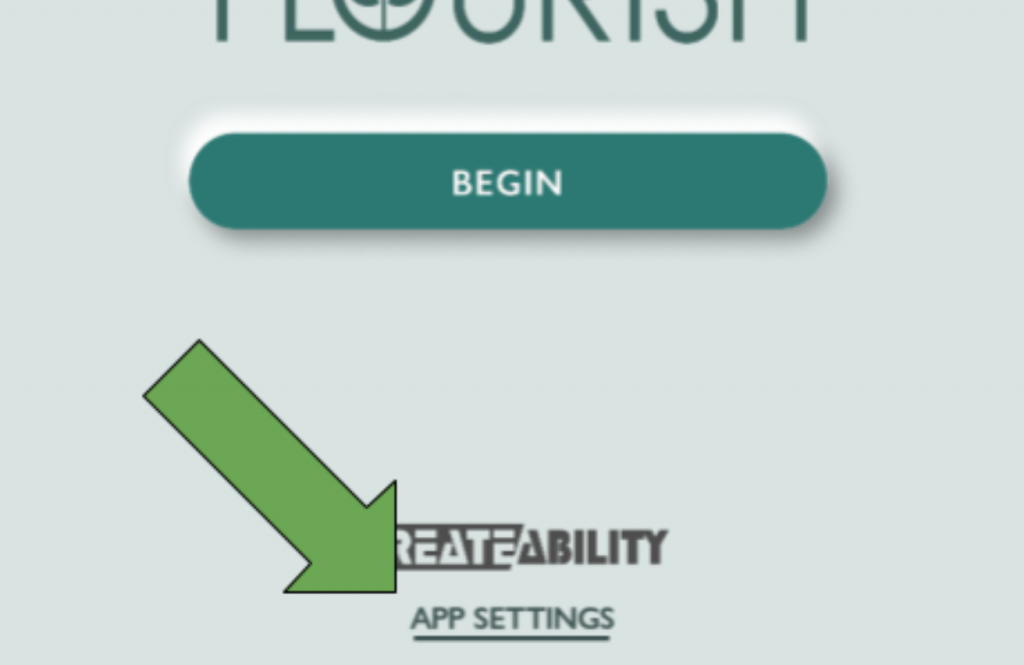
- Press the app settings link at the bottom of the splash screen with the Flourish logo.
- In the field labeled User Code, enter the unique code issued to you CreateAbility Inc. or your organization.
- Next, Press Restore.
- And finally, press Save. Flourish will restart with the restored plan data.
- If you want to perform a back-up or restore from the plan section of Flourish, you can access the settings page by pressing and holding the header in any of the plan sections and pressing APP SETTINGS in the appearing popover widget at the bottom of the page.
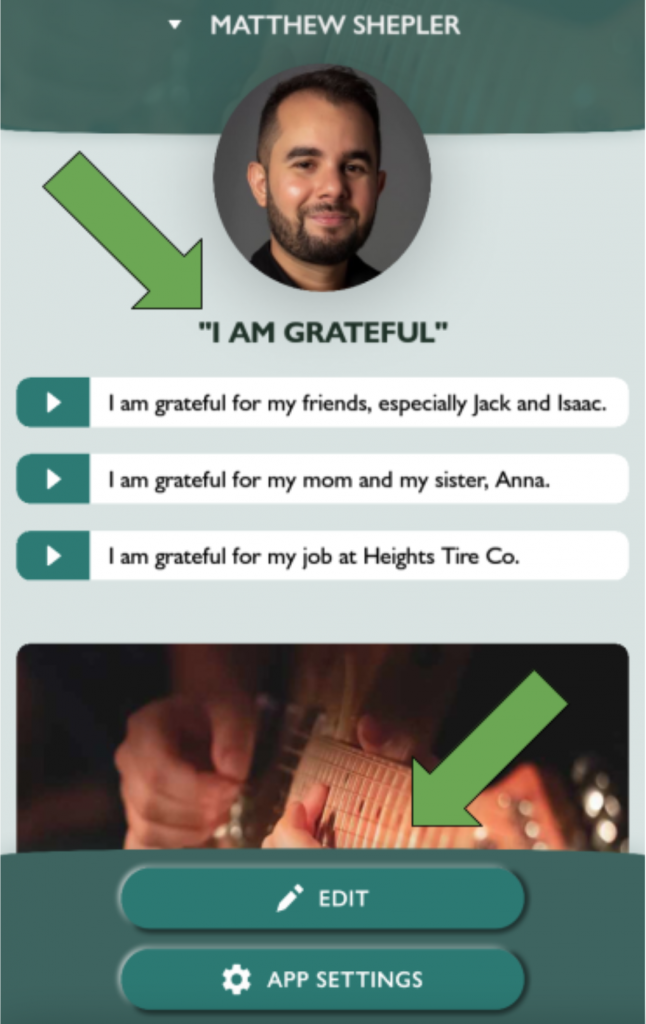
You can also edit your plan panels by pressing the EDIT button directly above app settings.
Remotely editing a Flourish Person-Centered Plan on a client’s device.
- Navigate to GIRDER.BEAM.CARE
- Log in with your Girder credentials.
- Select the system of the person you support.
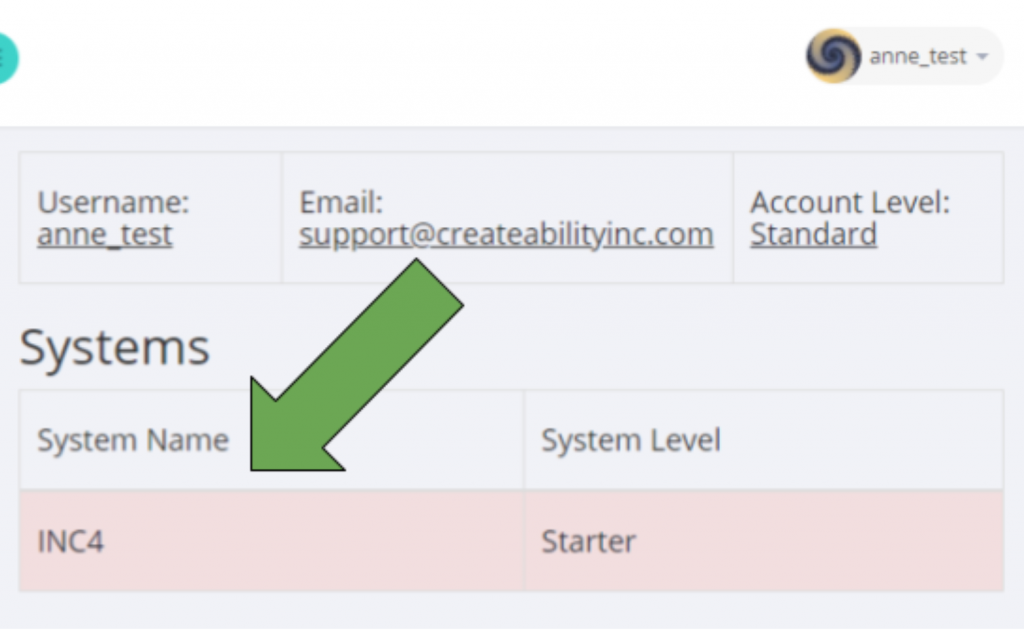
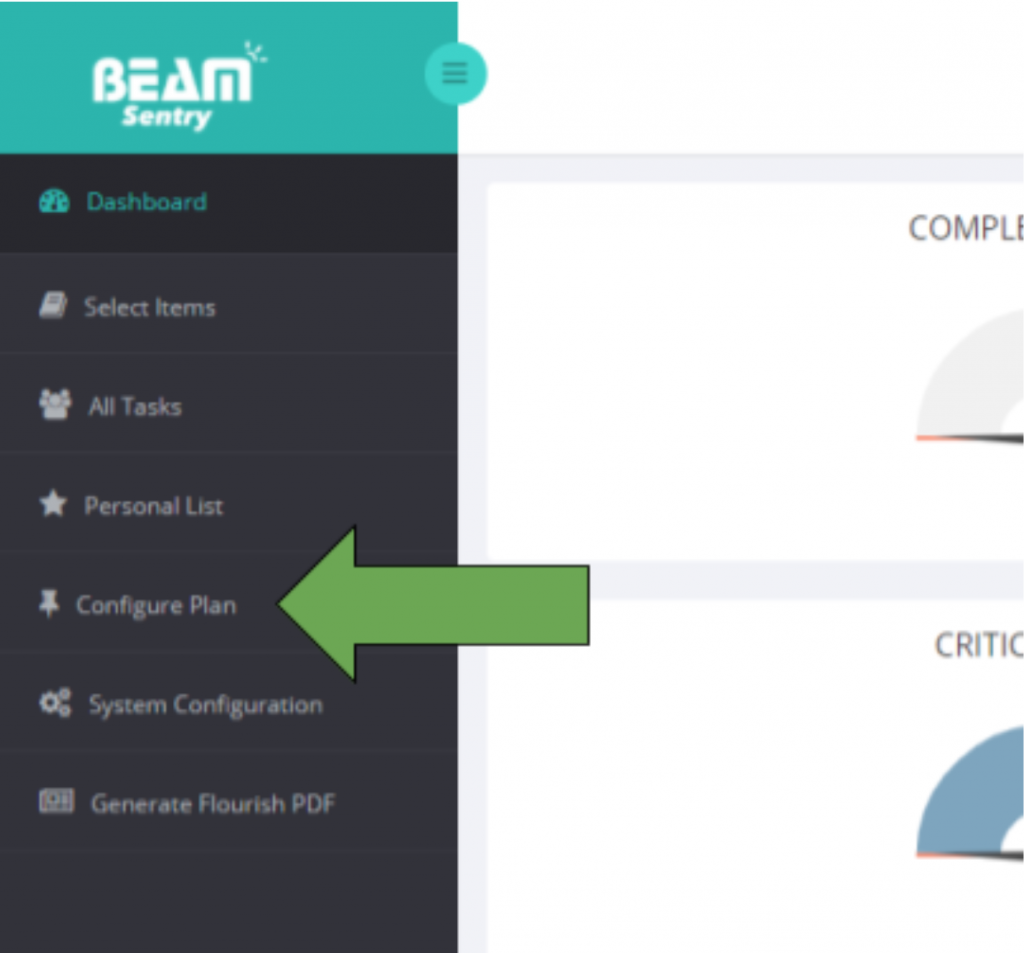
- Press Configure Plan in the dark menu area.
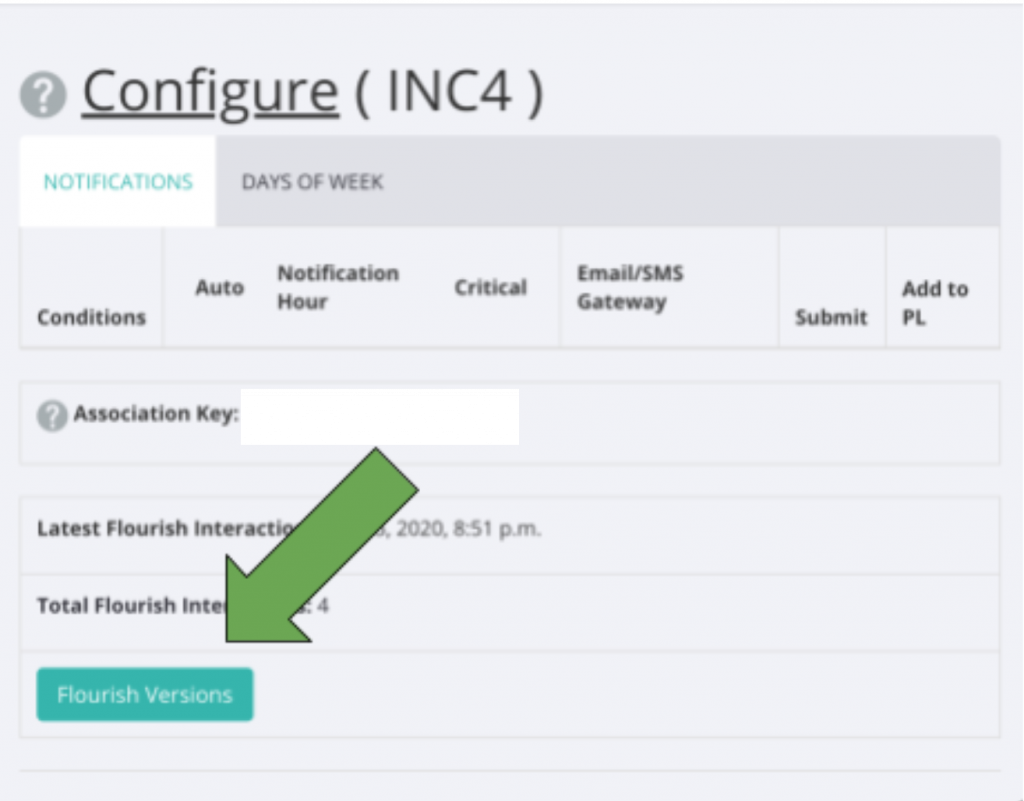
- Scroll to the bottom of the Configure Plan page and press the Flourish Versions button
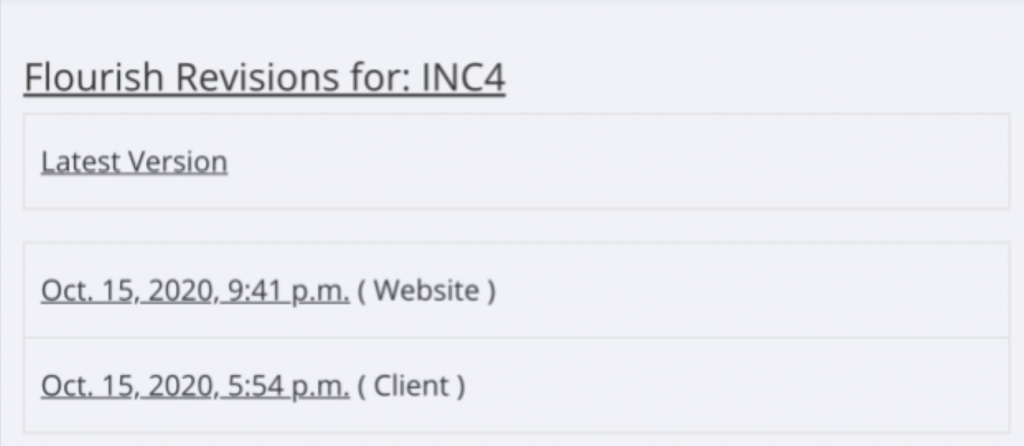
- You can press each entry of this page to view and edit current plans, or view or restore previous plans. Next time the Flourish user starts the app, they will be notified of new data.
Creating printable Flourish plans
Press Generate Flourish PDF in the menu area of GIRDER.BEAM.CARE
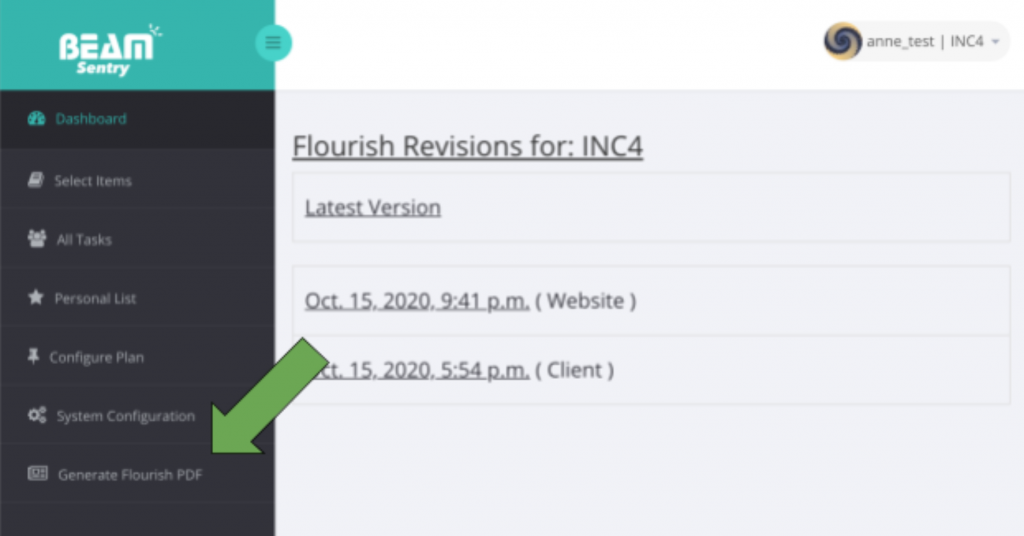
A download will automatically start, or you browser may open the PDF at which point you can save it to your device or share it with others.